

This guide shows how to compare your commute costs with Compare My Commute, from your first figures to a result you can share. It takes about ten minutes, and you do not need an account. The examples use the sample data, so the dollar amounts are illustrations, not advice.
Why use it? Six common situations
Find the one that sounds like you, and follow the steps after this section with that situation in mind.
1. I’ve just got my first job
You are weighing up options you have never costed. Tick every way you could realistically get there, enter the distance and time for each, and read the cost per week and per year next to the time it takes. A cheap option that takes an extra hour a day may not be cheap at all. Set your likely choice as the baseline week.
2. My car needs replacing
Make your current car the baseline, then tick the hybrid, plug-in electric, motorcycle or leased car you are considering. Use the full cost of ownership view to compare buying, and the break-even in each scenario summary to see how long an upfront cost takes to earn back.
3. Fuel keeps going up
Enter today’s fuel price and set your normal week as the baseline. Then use Quick set to swap one day, then two, to something cheaper. Switch to running costs only to see what you actually save week to week.
4. I’m changing jobs or moving
Change the one-way distance and time for each option to match the new trip, and compare it with your current baseline. The yearly difference is the number to weigh against the new salary or rent.
5. Should I lease or buy?
Tick the car and the leased car. Record what the lease payment already includes so nothing is counted twice, and compare on full cost of ownership, where fixed costs such as depreciation and the lease payments are included.
6. Is the bike, the walk or the train really cheaper?
Tick bicycle, walking and public transport against your current way. Put a value on your hour in Optional extras so the time cost shows, and check the CO₂ estimate and the exercise note for the rest of the picture.
Before you start
Have a rough idea of these for each way you travel:
- How far the trip is one way, and how long it takes door to door, including walking and waiting.
- What you pay for fuel, charging, parking, tolls or fares.
- For a vehicle you own: what you paid, what it is worth now, and the yearly cost of insurance and registration.
You do not need everything. Every option is optional, and a blank figure simply counts as nothing.
Step 1: See how it works with sample data
Open the calculator and press Load sample data. It fills in all eight options so you can see a finished comparison before typing anything. When you are ready for your own figures, press Clear sample data, which puts back whatever you had before.
Step 2: Tick your options and fill in the details
Under Your commute options you will see eight cards: car, hybrid, plug-in electric, leased car, motorcycle, bicycle, walking and public transport. Tick Include in comparison on at least two. Ticking a card opens its details, and you can open or fold any card by hand with Show the details.
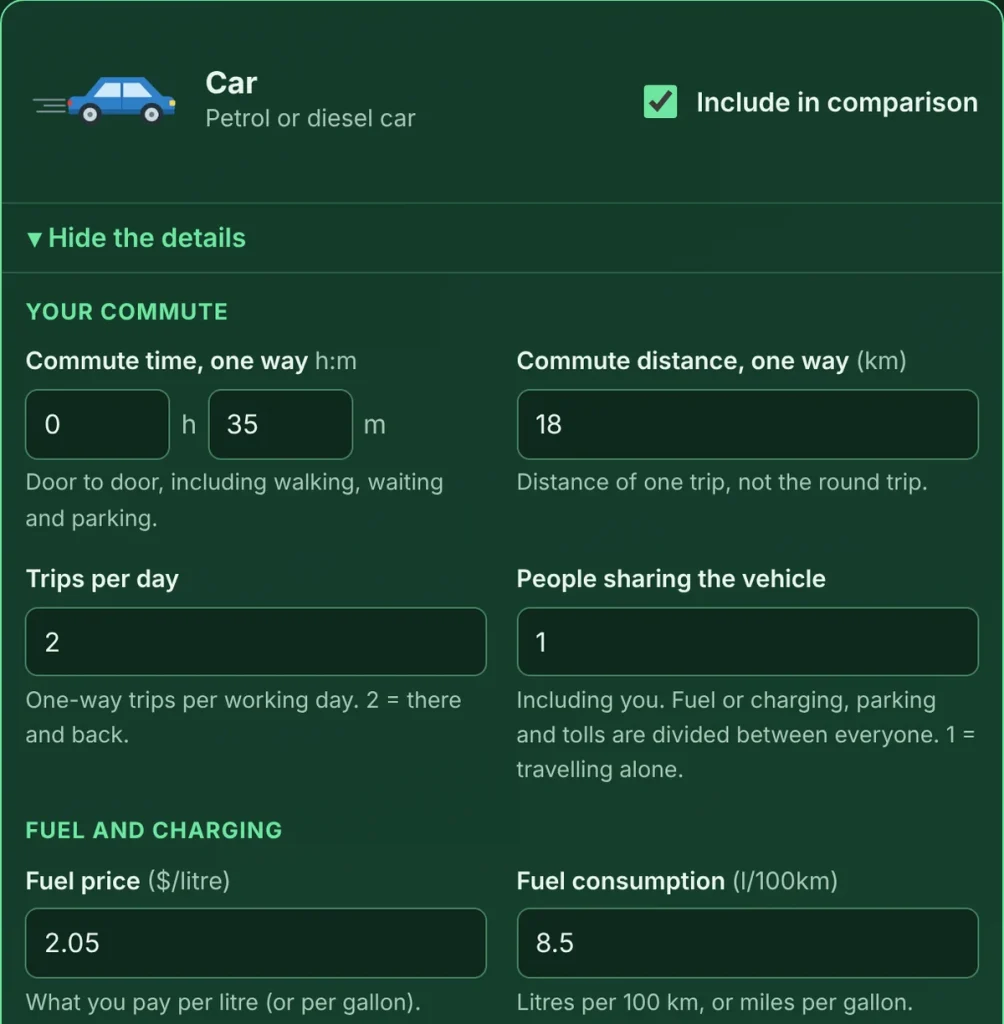
Two things trip people up here. Distance is one way, and trips per day counts one-way trips, so a there-and-back day is 2. If you share a vehicle, enter the number of people, and fuel, parking and tolls are divided between you.
Step 3: Check your working year
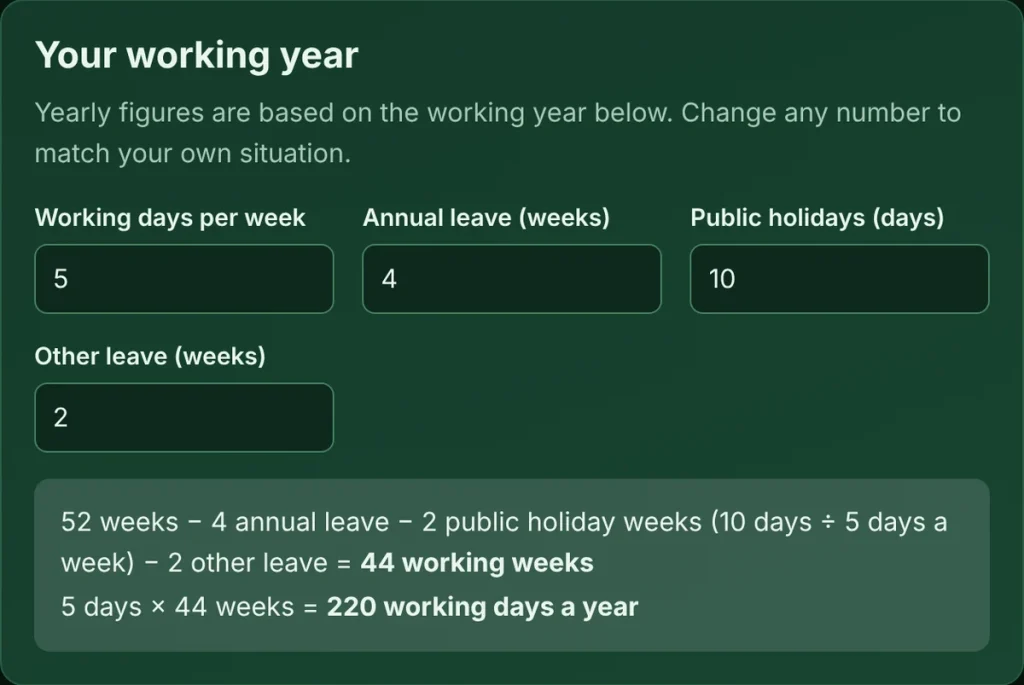
Yearly figures depend on how many days you commute. Your working year starts from five days a week and 44 working weeks, and it shows the sum so you can check it. Change the days, annual leave, public holidays or other leave to match your own year.
Step 4: Read the cost and time for each option
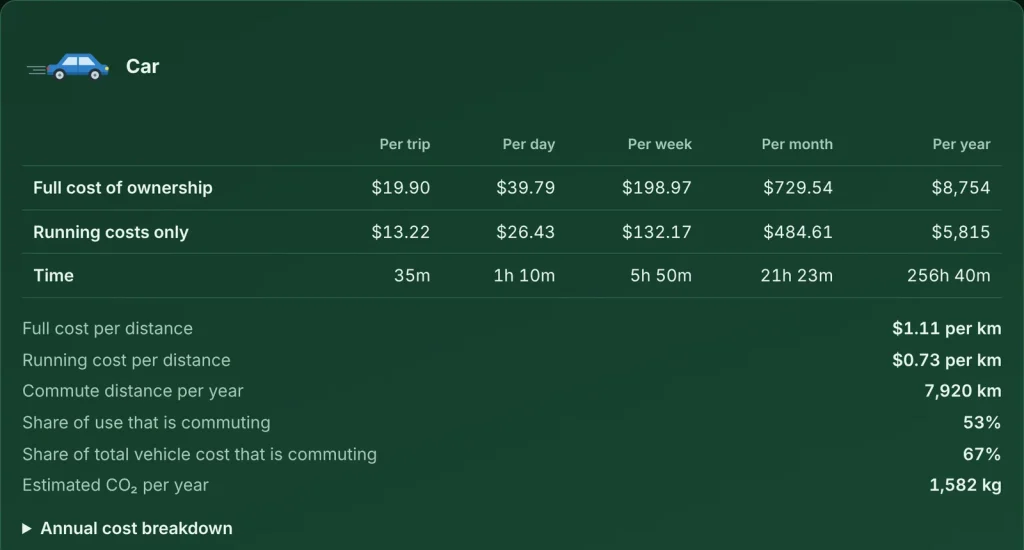
Each option you ticked gets a card showing its cost per trip, day, week, month and year, plus its time and cost per distance. Use the choice above the results to switch between two views:
- Full cost of ownership adds a share of the fixed costs, such as depreciation and insurance. Use it to ask what each option really costs.
- Running costs only counts fuel, parking, tolls, fares and wear. Use it to ask what you save by swapping a day.
Want your time counted as well? Open Optional extras and enter an hourly value. A cost-plus-time column appears. Leave it at 0 and it stays hidden.
Step 5: Swap days and compare scenarios
This is the part that answers “what if?”. The comparison starts with your baseline, which is your normal week. Set the baseline to how you really travel now, then edit Scenario 1 or use Quick set: pick a number of days, pick an option, and press Apply. Add a scenario gives you up to four, and Reset to baseline undoes a change.
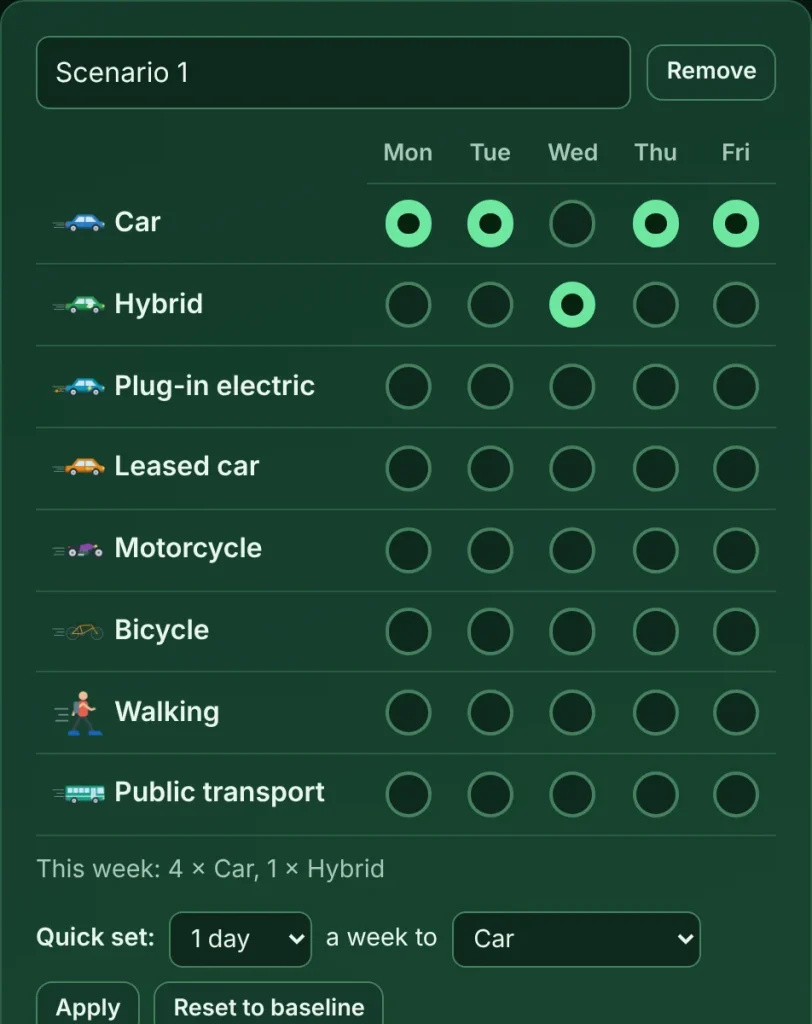
Each scenario also gets a plain-English summary of what changes. Where there is something to buy, it works out a break-even from the upfront cost and your weekly saving. It does not count what you could sell your current vehicle for, so treat it as a guide.
Step 6: Save your figures, or clear them
Press Save data to keep your figures in a cookie on this device. After the first save, changes are saved automatically. Clear my data removes the cookie. Scenarios are not saved: they are worked out and shown on screen only, so build them again next time.
Step 7: Generate a result to share
Under the scenarios, press Generate my results to share. A short post is written from your own figures, using your best swap or else your cheapest and dearest option. Each press of the button ends the post with a different closing line, so you can generate a few and keep the one you like. Edit the words if you like, then choose Copy text, Facebook, X, LinkedIn or Message or email. Facebook and LinkedIn cannot be given the text, so it is copied for you to paste. Nothing is sent anywhere until you press a button.
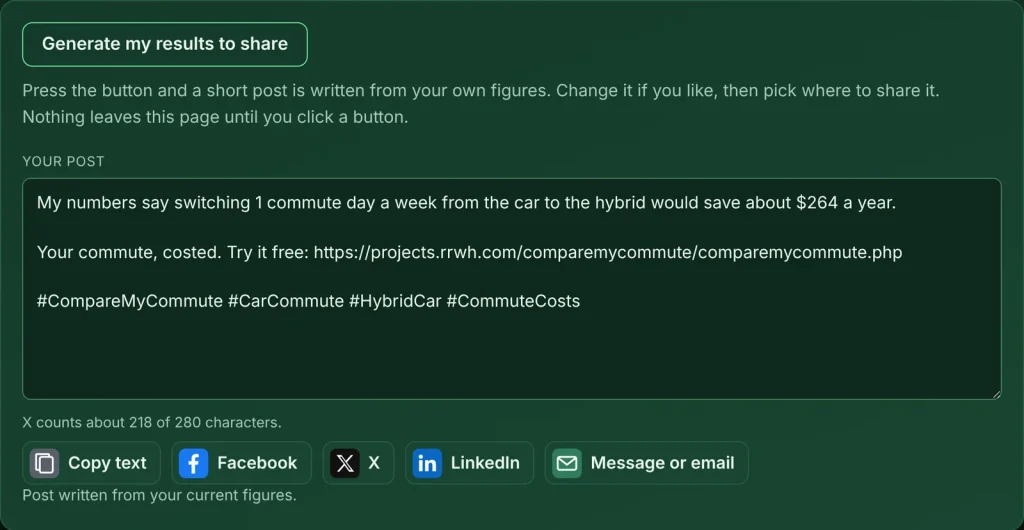
If you change your figures after generating a post you have not edited, it clears itself, so you never share old numbers. Press the button again for a fresh one.
Tips for a fair comparison
- Use the same working year for every option. The calculator does this for you.
- Include parking, tolls and fares. They are easy to forget and often decide the result.
- For a lease, tick what the payment already includes so it is not counted twice.
- For a hybrid, enter the share of distance you travel on electricity.
- If you use a vehicle for more than commuting, enter the total distance it travels in a year, so only the commuting share of its fixed costs is counted.
What it does not do
The results are estimates from the figures you enter, not financial advice. Depreciation is a straight line, public transport is a daily fare with no caps or concessions, and tax effects of a novated lease are not modelled. The CO₂ figures are estimates, and walking and cycling are counted as zero.
That is the whole tool. For the reasons behind it, read how it was built, or see everything it does on the project page.





Leave a Reply